Tune a Bass Perfectly in Noisy Rooms Using Online Tools
Introduction
Ever tried tuning your bass in a busy cafe, loud dorm, or crowded rehearsal space—only to get frustrated when your tuner can’t hear you? You’re not alone. Background noise ruins tuning—whether you’re in a loud apartment or a chaotic gig. Traditional methods just can’t keep up.
But here’s good news: modern online tools like our Bass Tuner are built to handle real-world challenges. With smarter mic techniques and noise-beating features, you can get studio-level accuracy in any environment—no hardware required. In this guide, you’ll learn:
- Why your low-end is tough to capture amid noise
- How to position your device’s mic like a pro
- When to use “stealth” tuning methods
- Which free tool adapts best (spoiler: it’s right here)
Struggling with noisy rooms? Grab your bass and let’s fix it—no expensive gear needed. Just open our free bass tuner in your browser and let’s get started.

How to Use a Free Online Bass Tuner in Loud Environments
It takes less than 30 seconds to get a perfect tune, even with chatter in the background. Here’s the quick-start guide:
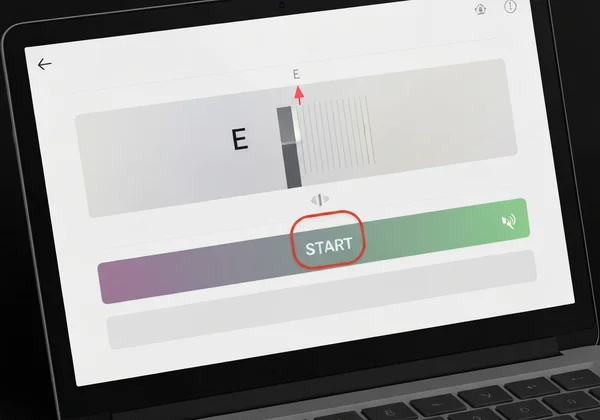
- Open the Tuner: Navigate to our free online bass tuner on your phone or laptop. No downloads or sign-ups required.
- Allow Mic Access: Click "START" and allow your browser to use your microphone. This is crucial for the tuner to hear your instrument.
- Get Close: Position your device’s microphone as close to your bass as possible. We’ll cover more pro techniques below!
This simple setup works for most situations. If you're still fighting the noise, the advanced tricks in this guide will get you dialed in.
Why Background Noise Derails Bass Tuning (And How to Beat It)
Deep bass notes vanish in room noise. Here’s why—and how to beat it.
The Physics Challenge: Low Frequencies vs. Ambient Sound
Imagine throwing a pebble (high note) vs. a heavy rock (low note) into a wavy lake. The bigger splash from the rock gets lost in the water’s movement—just like your bass’s low E (41Hz) disappears in room noise.
- Why this matters for tuners: Standard phone mics prioritize human speech (85-255Hz), not deep bass tones.
- Solution: Use a tuner like BassTuner that boosts low-end sensitivity.
Mobile vs. Desktop Mics: Sensitivity Differences
- Phones/Tablets: Built-in mics are small and optimized for voice calls. They often struggle with low E strings. Ever had your E string ignored by a tuner? This is why.
- Laptops/Desktops: Often have larger, more responsive mics—ideal for lower notes. Quick tip: Test both devices! Bookmark our tuner on all your gadgets for flexibility.
Pro Mic Positioning for Bass Tuners in Loud Spaces
Where you place your device—and how you play—dramatically affects tuning accuracy.
The “Fingerboard Finger” Isolation Technique (Beginner-Friendly)
- Start BassTuner and let it access your mic.
- Pluck your string normally.
- Immediately gently touch the vibrating string against the fingerboard (like a fret).
- Hold until the tuner detects the note. Why it works: Shortening the string's vibration isolates the core pitch from background noise.
Shielding Your Phone Mic With Household Objects
Block noise physically using:
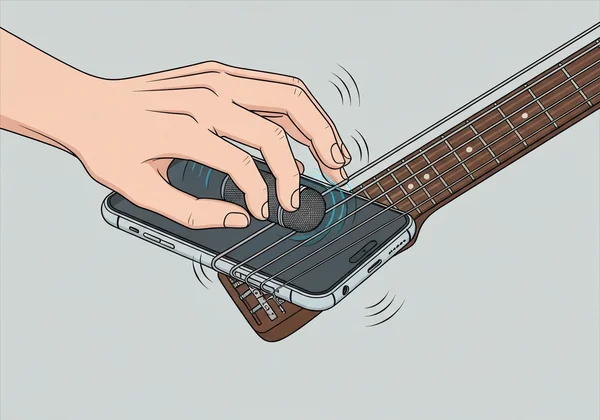
- A coffee mug: Place your phone inside, mic facing your bass.
- A folded towel: Drape it over your phone, leaving the mic slightly exposed.
- Your hand: Cup it around the mic like a mini “sound booth.”
Pro reminder: Even DIY shields work better with a precise tuner like BassTuner, which visually highlights pitch drift in green/red.
Low Volume Tuning Tricks for Shared Spaces
Whether roommates are sleeping or bandmates are warming up, these quiet methods save the day.
Using Harmonics for Quieter Detection
Harmonics produce clear, bell-like tones that are much easier for tuners to hear, even at low volumes.
-
Open our online bass tuner and select your target string (e.g., A).
-
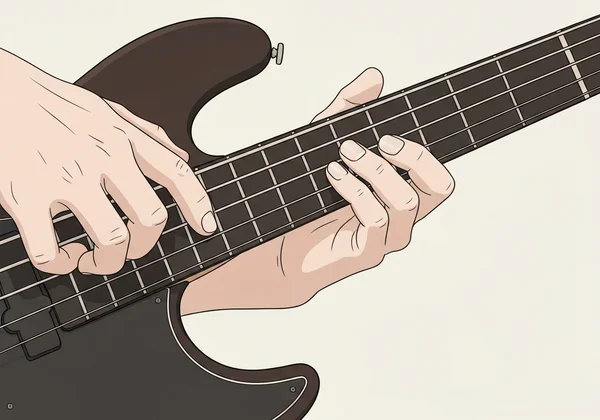
Lightly touch your finger over the 12th fret (don’t press down).
-
Pluck the string. You’ll hear a chime-like sound—perfect for mics to detect.
Headphone-Only Mode Walkthrough
- Use headphones plugged into your device (wired or Bluetooth).
- Sing or hum the target note (e.g., E) into the mic.
- Tune your bass string by ear until it matches your voice pitch. Why it’s genius: Your phone's mic is designed to pick up your voice over background noise.
Advanced Noise-Filtering Workflows
Advanced players: Take full control of your tuning setup with these pro tools.
Calibrating Web Audio Settings for Bass Frequencies
- Open our tuner on Chrome/Firefox.
- Click START, then click the lock icon 🔒 in your browser’s address bar.
- Select “Site Settings” > Microphone > “Allow” (if not already enabled).
- Critical step: Under “Microphone Enhancement,” disable noise suppression. Why? This prevents your browser from accidentally “erasing” your bass frequencies, thinking they're just background "noise"!
Your Noise-Beating Tuning Checklist
Tuning a bass in noisy rooms isn’t impossible—it just requires smarter tools and techniques:
- Shield your mic (mugs, hands, towels reduce interference).
- Go quiet with harmonics or headphone-based tuning.
- Disable noise suppression in your browser settings.
- Use the right tuner—prioritizing bass-friendly tools like our FREE BassTuner.
Your turn: Open any browser → Visit our online tuner → Tune instantly. No ads, no lag, just perfect pitch.
The Takeaway
Can I Use Headphones With a Browser-Based Bass Tuner?
Yes! Plug in your headphones—our tuner detects your bass even at whisper volume! Simply allow mic access when prompted (even with headphones plugged in), and the tuner will pick up the vibrations directly from your bass.
Why Does My E String Never Register in Noisy Rooms?
Most mics struggle with the low E’s 41Hz frequency. Here’s how to fix it:
- Pluck closer to the bridge (this adds more high-frequency “snap”).
- Use harmonics (as shown earlier).
- Try our tuner’s “Boost Bass” mode (it auto-enhances low-end detection).
Do AirPods Work for Online Bass Tuning?
AirPods can work, but wired headphones give more reliable results. Bluetooth mics sometimes compress audio, masking the bass fundamentals. For best results:
- Use wired headphones or your device’s built-in mic.
- Visit our responsive tuner—it’s optimized for both iOS and Android browsers.